
The floating-island practice files
Use this cottage, trees and waterfall to practice a reference-led texturing workflow. The downloadable white model has 1 mesh and 60,000 triangles. Its reference image shows distinct roofing, foliage, stone, wood and water surfaces.
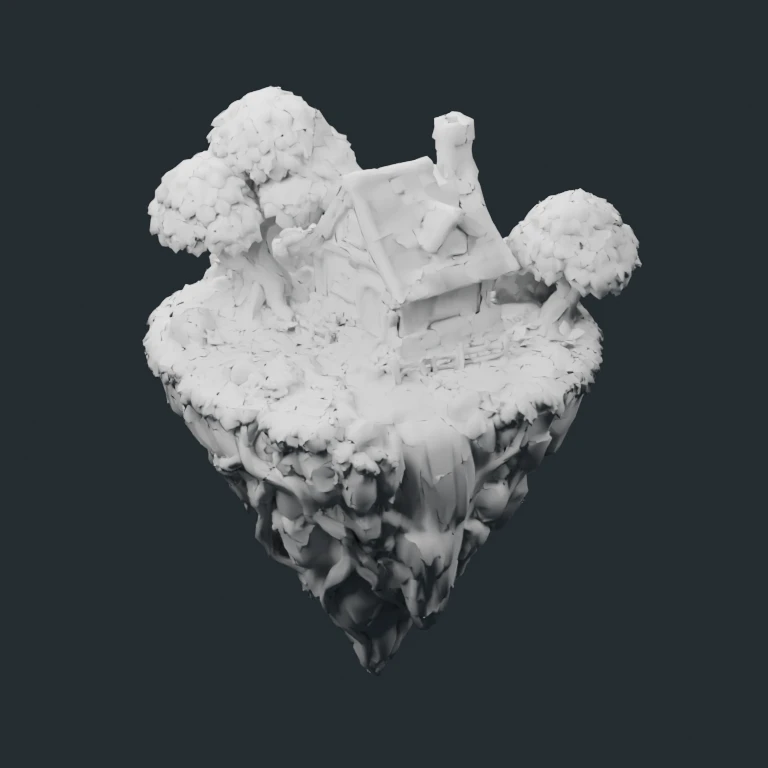
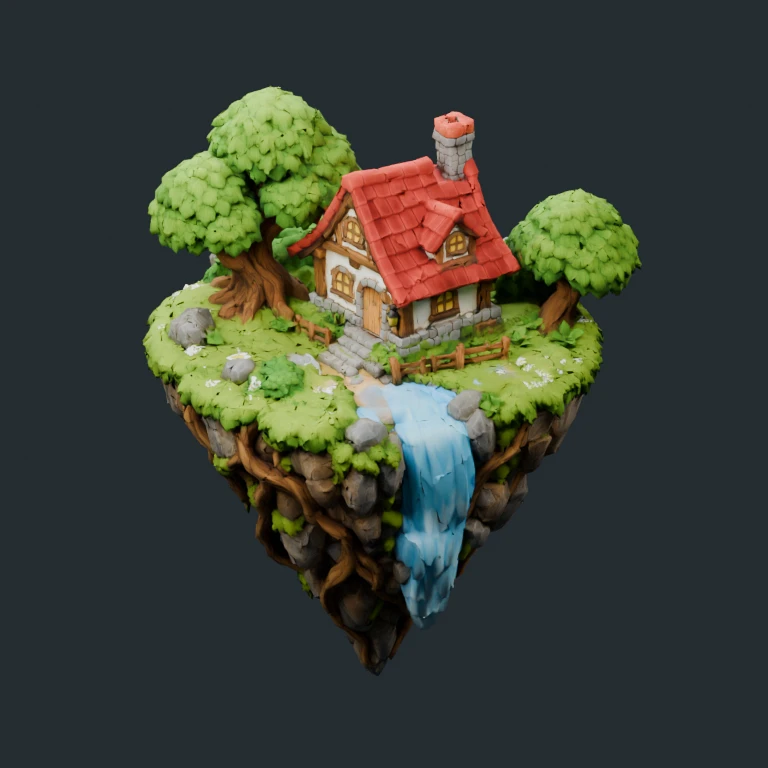
Download the floating-island cottage practice files
Matching models, reference image and maps for this guide. These are public CC0 practice assets; your account uploads remain private.
- Untextured practice model (.glb)
- Reference image from supplied materials (.png)
- Textured practice model with source materials (.glb)
- Separate texture maps (.zip)
- Texture manifest (.json)
- CC0 license (.txt)
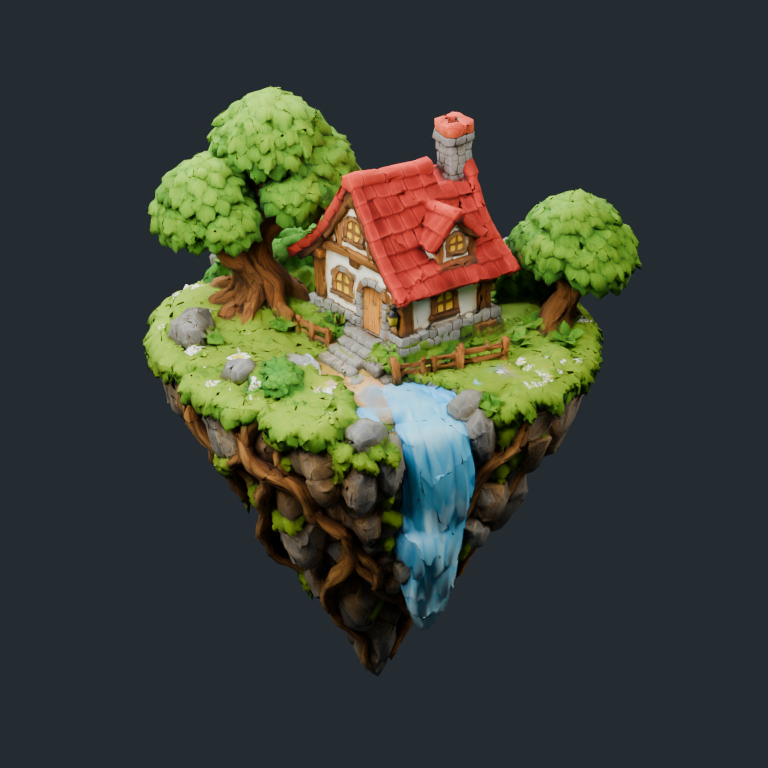
The ZIP contains maps, manifest.json and README.txt. Save the separate textured GLB as result.glb. Source and checksums · Blender verification.
1. Prepare your model
Download the untextured floating-island GLB or use a model you have permission to process. Keep the original file and work on a static copy if it contains rigging or animation.
Open the AI texture generator and add the file to the local preview. Rotate around the house, trees and underside of the island. Check for missing pieces and unexpected orientation before submitting.
- Meshy accepts self-contained GLB, GLTF, OBJ, FBX and STL files. Hunyuan accepts GLB and OBJ. GLB is the simplest starting point.
- Keep the file within the displayed 80 MB limit. ZIP uploads and models that need external dependencies are not supported.
- Local preview reads the file in your browser. Submitting a generation uploads the inputs required to process it.
The practice copy was reduced from 799,999 to 60,000 triangles to make the downloads and viewport easier to work with. This is a local preparation step, not an AI geometry change.
2. Choose a text description or reference image
For this practice workflow, choose reference-image mode and upload the supplied cottage render. It depicts the same geometry as the white model, so the red roof, green foliage and blue waterfall have clear locations.
Meshy accepts either text or a reference image. Hunyuan uses reference images and supports additional views. If you add more views, keep the subject and materials consistent rather than mixing unrelated scenes.
For text guidance, choose Meshy and describe the appearance by region: roof, walls, stone, leaves and water. The model supplies the shape; the description guides its surface appearance. The reference does not guarantee exact matching, particularly where leaves overlap or the underside is hidden.
Only upload models and reference images you have permission to use. The practice asset’s CC0 license is included with its downloads.
3. Submit and inspect your actual generation
Sign in and verify your email if prompted. Check the selected generator and cost before submitting: the current configuration charges 30 credits for Meshy or 20 credits for Hunyuan. Generation must be available and your balance must cover the job.
When your result is ready, inspect it from more than the front view. For this island, pay particular attention to:
- Boundaries between the roof, chimney and tree canopy. Similar colors can obscure where one surface ends.
- The underside of the island, the rear of the cottage and areas behind foliage that the reference barely shows.
- Water, stone and timber surfaces that need different roughness or metallic behavior.
Compare the silhouette, object structure and UV layout with your input before continuing. Preservation of rigging, animation, UVs and separately editable objects is not guaranteed. A request to preserve the shape is not a geometry acceptance test.
A delivered result still costs credits if you dislike its appearance. Confirmed technical failures refund the charged job credits; an uncertain provider status may require reconciliation.
4. Download and check the returned files
Use your result or generation history to download the textured GLB and texture ZIP. Keep both together. The GLB contains the returned model and embedded materials; the ZIP contains the available standalone maps and their manifest.
The practice material study includes base color, normal, roughness and metallic maps at 4096 × 4096 pixels. Those are the actual source-map dimensions, not a promise about every AI generation. Check your job’s manifest for its delivered maps and sizes.
Use the returned model’s UVs with its maps. Applying those maps to the original input can misalign the material if generation changed the UV layout. The supplied colored practice GLB is available for material inspection, but it does not stand in for the result of your own job.
To learn the next step on a different model, follow the Blender guide with its blue-and-gold sword. That article includes its own matching model and texture pack.
Source and practice limits
The practice files are derived from a licensed third-party asset with AI-assisted source creation. Their preparation and download checks are recorded in the provenance file. We also imported the packaged GLB and independently rebuilt its material in Blender.
These local checks validate the downloadable practice files. They do not establish current provider quality, exact reference adherence, a completed paid website generation or a game-ready asset. Inspect your own output in the application where you plan to use it.
Try this with your own model
Preview your file locally, choose an appearance and check the generation cost before submitting.
Open the AI texture generator