
AI Texture Generator
for 3D Models
Give your 3D model a new look with our AI texture generator. Describe its colors and materials or add a reference image, then inspect the result from every angle.
Start with your model Preview locally before submitting for generation
Start with your 3D model
Add your model and check it from every angle. Then choose a reference image or describe the look you want.
Your model, a new look.
Detailed textures · 4K
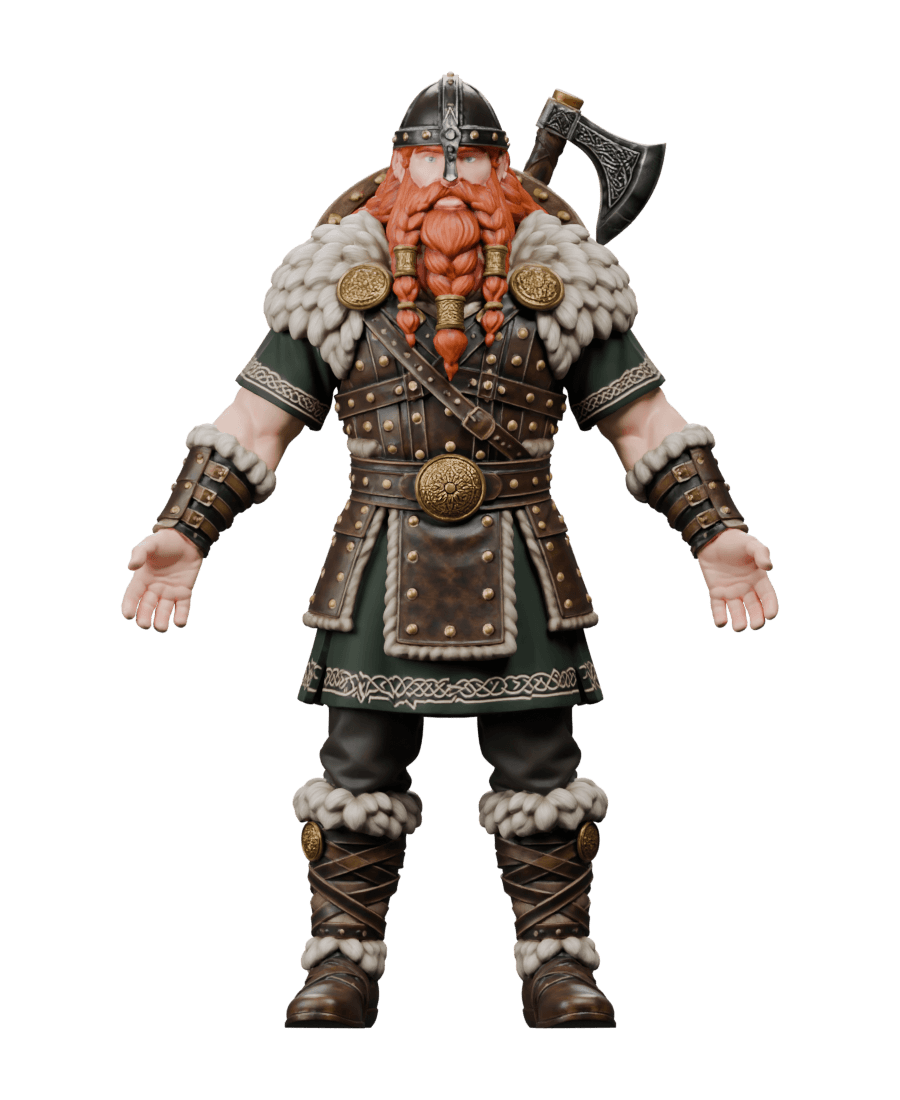
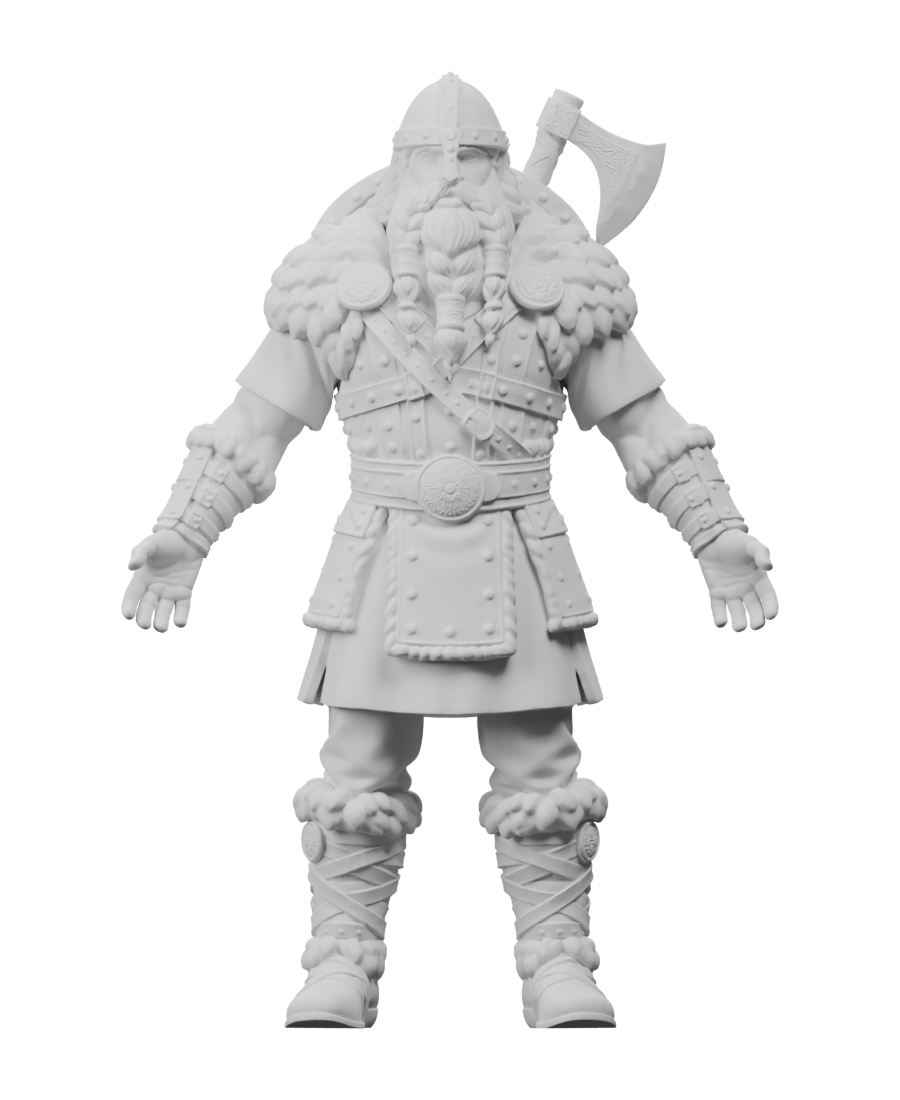
Give the AI a clear reference
Choose an image with a similar shape and clear colors. Add other views when your selected generator supports them.
Start with an untextured model
Check that the shape and surface details are easy to see. Preview your model from the front, sides and back before generating.

Choose a matching reference
Use artwork of the same subject with similar proportions. A clear front view helps guide the colors and materials you want.

How to texture a 3D model with AI
Start with a model you already have. Choose its appearance, review the result and take it into your next project.
Find the right look for your asset
Try worn metal on a game prop, new colors on a character or a material inspired by your reference artwork.
- 01
Add your 3D model
Open your file and check its shape and orientation in the preview.
- 02
Choose its appearance
Describe the look you want or add a reference image. Available inputs depend on the selected generator.
- 03
Generate, inspect and download
Review the textured result from different angles, then download the model and available texture maps.

Take your textured model into your next project
Explore an appearance for your asset, check the details in 3D and download a starting point for further editing.
Start with welcome credits
New accounts receive 30 credits. Check the generation cost before you submit, then add credits when you need more.
Take your textures into your project
Download a textured GLB and a separate texture pack. Check the included maps and their actual sizes before continuing your work.
Show the look you have in mind
Use Meshy with a description or reference image. Choose Hunyuan for image guidance, with extra views when you have them.
Check more than the front view
Rotate your model to inspect its colors and surface details. Look at the back and sides before deciding what to refine.
Preview before you submit
Open your model in your browser and check that it looks right. Local preview keeps the file on your device until you submit it.
Explore another material or color
Try worn metal on a game prop or a new color scheme on a character. Use the result as a starting point for further editing.

AI texture generator FAQs

Give your next model the look you imagined
Start with a model you already have. Choose its colors and materials, then explore how a new texture could bring your idea to life.
Start with your model 30 free credits. No credit card required.